背景
apt updateでwarningがでるようになた- いつの間にかapt-keyのやり方が変わっていたらしい
- 昔入れたdockerの入れ方によって発生していた
- 結構前からそうだったらしいが、2026年に気がついた
問題
発生したwarning
1
2
3
| apt update
...
W: https://download.docker.com/linux/ubuntu/dists/noble/InRelease: Key is stored in legacy trusted.gpg keyring (/etc/apt/trusted.gpg), see the DEPRECATION section in apt-key(8) for details.
|
warningの原因
古いdockerのインストールコマンドで入れた鍵の入れ方が原因だった。
 1
 2
 3
 4
 5
 6
 7
 8
 9
10
11
12
13
| #!/bin/bash
sudo apt-get install apt-transport-https ca-certificates curl gnupg-agent software-properties-common -y
curl -fsSL https://download.docker.com/linux/ubuntu/gpg | sudo apt-key add -
sudo add-apt-repository "deb [arch=amd64] https://download.docker.com/linux/ubuntu $(lsb_release -cs) stable"
sudo apt-get update
sudo apt install docker-ce docker-ce-cli containerd.io -y
sudo apt install docker-compose-plugin -y
sudo usermod -aG docker $USER
newgrp docker
docker ps
# reboot
|
どうやら、apt-key add - は今では非推奨らしい。
1
2
3
| sudo apt-key list
Warning: apt-key is deprecated. Manage keyring files in trusted.gpg.d instead (see apt-key(8)).
...
|
warningの対応
以下で対応した。
 1
 2
 3
 4
 5
 6
 7
 8
 9
10
11
12
13
14
15
16
17
18
19
20
21
22
23
24
25
26
| # まず中身確認
cat /etc/apt/sources.list.d/archive_uri-https_download_docker_com_linux_ubuntu-noble.list
# Docker公式GPG鍵を新しい場所に配置
sudo install -m 0755 -d /etc/apt/keyrings
sudo curl -fsSL https://download.docker.com/linux/ubuntu/gpg -o /etc/apt/keyrings/docker.asc
sudo chmod a+r /etc/apt/keyrings/docker.asc
# 新形式の docker.sources を作る
sudo tee /etc/apt/sources.list.d/docker.sources > /dev/null <<EOF
Types: deb
URIs: https://download.docker.com/linux/ubuntu
Suites: noble
Components: stable
Architectures: $(dpkg --print-architecture)
Signed-By: /etc/apt/keyrings/docker.asc
EOF
# 古い Docker repo 定義を削除
sudo rm /etc/apt/sources.list.d/archive_uri-https_download_docker_com_linux_ubuntu-noble.list
# 古い鍵の削除
sudo apt-key del 0EBFCD88
# 確認
sudo apt update
|
apt-keyの知識
apt-keyとは
- apt-keyはaptのサブコマンド
- apt-keyは、aptがリポジトリを信頼するための GPGや公開鍵を管理するコマンド
apt-keyの検証の仕組み
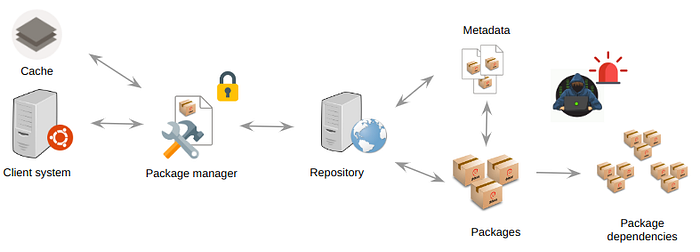
- aptは画像のようにmetadataをgpgキーで検証してパッケージが正しいかを確認する
- 具体的には、
InRelease や Release.gpg の署名を公開鍵で検証する - 信頼できる
Release メタデータには、Packages ファイルなどのハッシュ値が書かれている Packages ファイルには、各 .deb パッケージのファイル名、バージョン、依存関係、ハッシュ値などが書かれている- aptは、そのハッシュ値を使って、ダウンロードしたパッケージ本体が改ざんされていないか確認する
- ちなみに、
apt updateはmetadataを取りに行って、localのパッケージ一覧を更新するコマンドとなっている
流れ:
1
2
3
4
5
| GPG鍵で Release/InRelease を検証する
↓
Release に書かれたハッシュで Packages を検証する
↓
Packages に書かれたハッシュで .deb を検証する
|
apt-keyの用語
Repository, Release, Packages, debの関係
以下のような関係になっている。
- Repository: distribution / suite ごとの Release の集合
- Release: Packages.xz のハッシュ値が書いてある
- Packages.xz: 各 .deb パッケージのハッシュ値が書いてある
- .deb: 実際にインストールされるパッケージ本体
Releaseとは
Release は、APTリポジトリの「indexファイル」。
aptリポジトリは以下のような構造になっている。
 1
 2
 3
 4
 5
 6
 7
 8
 9
10
11
12
| https://archive.ubuntu.com/ubuntu/
└── dists/
└── noble/
├── InRelease
├── Release
├── Release.gpg
├── main/
│ └── binary-amd64/
│ └── Packages.xz
└── universe/
└── binary-amd64/
└── Packages.xz
|
この中で、Release が、リポジトリ全体のインデックスのような役割をしている。
そして、Releaseは、Packagesのハッシュを持っている。
 1
 2
 3
 4
 5
 6
 7
 8
 9
10
11
12
| Origin: Ubuntu
Label: Ubuntu
Suite: noble
Codename: noble
Date: Thu, 25 Apr 2024 15:10:00 UTC
Architectures: amd64 arm64 armhf ppc64el riscv64 s390x
Components: main restricted universe multiverse
SHA256:
abc123... 123456 main/binary-amd64/Packages.xz
def456... 234567 universe/binary-amd64/Packages.xz
...
|
ReleaseとInReleaseの違いは、ざっくり言うと InReleaseは署名付きReleaseファイルということ。
Packagesとは
Packages は、APT リポジトリに置かれている 「このリポジトリにはどんなパッケージがあるか」の一覧ファイル。
1
2
3
4
5
6
7
8
9
| Package: nginx
Version: 1.24.0-2ubuntu7
Architecture: amd64
Maintainer: Ubuntu Developers <ubuntu-devel-discuss@lists.ubuntu.com>
Depends: nginx-common, libc6, libssl3, ...
Filename: pool/main/n/nginx/nginx_1.24.0-2ubuntu7_amd64.deb
Size: 520000
SHA256: abcdef123456...
Description: small, powerful, scalable web/proxy server
|
以下のように配置されている:
1
2
3
4
5
6
| https://archive.ubuntu.com/ubuntu/
└── dists/
└── noble/
└── main/
└── binary-amd64/
└── Packages.xz
|
実際には、Packagesは、.xzや.gzなどの圧縮形式で配布されている。
apの話でのmetadataは、以下のような複数のメタデータ系ファイルの総称としてmetadataが使われる。
1
2
3
4
5
6
7
8
| InRelease
Release
Release.gpg
Packages
Packages.xz
Sources
Sources.xz
Translation-en.xz
|
- つまり、「metadata」という単一ファイルがあるわけではない
.deb本体以外の、APT がパッケージを探したり検証したりするための情報ファイル群をまとめて metadata と呼んでいるだけ
その他
add key -の意味
sudo apt-key add -は全体の信頼済みの鍵になる。
置き場は、/etc/apt/trusted.gpgに置かれる。
他方、新しいものは、dockerリポジトリの中でのみ使う想定となる。
1
2
| sudo curl -fsSL https://download.docker.com/linux/ubuntu/gpg -o /etc/apt/keyrings/docker.asc
sudo chmod a+r /etc/apt/keyrings/docker.asc
|
つまり、/etc/apt/trusted.gpgが非推奨になったということ。
新旧の検証方法の違い
もともとの検証方法:
1
2
3
4
5
6
7
8
9
| apt update
↓
sources.list / sources.list.d/ を読む
↓
各リポジトリから InRelease / Release.gpg を取る
↓
公開鍵(/etc/apt/trusted.gpg、/etc/apt/trusted.gpg.d/*.gpg)で署名を検証する
↓
OKなら、そのリポジトリのパッケージ一覧を信用してDL
|
新しい検証方法(dockerの場合):
 1
 2
 3
 4
 5
 6
 7
 8
 9
10
11
12
13
14
15
16
| apt update
↓
/etc/apt/sources.list.d/docker.sources を読む
↓
URIs: https://download.docker.com/linux/ubuntu
Signed-By: /etc/apt/keyrings/docker.asc
↓
https://download.docker.com/linux/ubuntu から InRelease / Release.gpg を取得
↓
/etc/apt/keyrings/docker.asc の公開鍵で署名を検証
↓
署名OK
↓
Docker repo の Packages 一覧を信用
↓
docker-ce / docker-ce-cli / containerd.io などをDL・インストール可能にする
|
/usr/share/keyringsと/etc/apt/keyringsの違い
| 置き場所 | 想定される管理者 | 典型例 |
|---|
/usr/share/keyrings | パッケージ自身 | Debian/Ubuntu の公式アーカイブ鍵、鍵配布用パッケージが更新する鍵 |
/etc/apt/keyrings | システム管理者 | 管理者が手動で追加したサードパーティーリポジトリの鍵 |
まとめ
- 今後は鍵は、個別に設置して、aptで設定するのがいい感じ
- サードパーティリポジトリの鍵を
/etc/apt/trusted.gpg に入れる方式は避ける - 今後は
/etc/apt/keyrings/ に鍵ファイルを置き、.sources または .list 側で Signed-By を指定する - これにより、鍵の信頼範囲を特定のリポジトリに限定できる
参考文献